AnyTone AT-D878UVII PLUS · Volume 3
AnyTone AT-D878UVII PLUS — Vol 3: Programming
Top-tier DMR handheld with dual-receive, Bluetooth, APRS, AES
3.1 Programming workflow
The 878’s codeplug is the most complex programming surface in the lineup — significantly more involved than any analog HT or scanner, comparable in complexity to a commercial Motorola APX codeplug. Getting it right the first time requires understanding the codeplug’s object hierarchy, the cable protocol, and the AnyTone CPS workflow.
3.1.1 Cable
The required cable is the AnyTone official programming cable (PC-58 / PC-127). BridgeCom sells these for USD 25-35 mid-2026. The D868/D878 family programs over USB through the radio’s own GigaDevice GD32 microcontroller, and the only driver AnyTone and BridgeCom supply is the GD32 virtual COM port driver for that interface. Neither vendor supplies or mentions an FTDI, CP210x or CH340 driver, so the often-repeated claim that the cable contains a USB-serial bridge chip could not be confirmed and appears to be wrong. The practical diagnostic is Windows Device Manager: with the radio connected and switched on, a new COM port should appear; a charge-only cable produces nothing.
Driver-wise: AnyTone states that Windows 10 needs no driver, and BridgeCom marks its GD32 driver package (version 2.0.2.4944) “DO NOT USE ON A WINDOWS 10 PC!” — it is for Windows 7/8 only. The AnyTone CPS is Windows-only, so on Linux or macOS it runs under Wine or in a Windows VM — see Vol 3 §4 ↗ for the cross-platform programming-software treatment. CHIRP does not support the D878: neither the CHIRP-next nor the legacy build contains a D878 driver, so CHIRP is not an option even for analog-only edits.
3.1.2 Software — the canonical AnyTone CPS
The AnyTone D878UV(II)(PLUS) CPS is the vendor-supplied configuration tool — Windows-only, free download from BridgeCom’s support site (https://support.bridgecomsystems.com/anytone-878-v2-model-cps-firmware-downloads; the older bridgecomsystems.com/pages/anytone-software address no longer resolves), version-locked to the firmware. The state as of September 2026:
- D878UVII PLUS firmware V4.00 release 250815 pairs with CPS V4.00 (released August 2025). It removes the satellite function added in the 3.0x line (not enough CPU space; the code optimisation it needed caused freezes on 3.08N) and fixes APRS settings not downloading in the CPS.
- BridgeCom’s UVII (V2 model) page lists packages 2.00/2.01b, 2.02N, 2.03, 2.04, 2.05, 3.00, 3.01, 3.02N, 3.03, 3.04, 3.05, 3.06, 3.08N and 4.00; 3.07 was removed “due to reported issues”. Each package pairs a CPS with the firmware of the same number.
- The original AT-D878UV (V1 model) has its own, separate firmware line on a separate BridgeCom page. AnyTone notes that V1 firmware loaded on a UVII produces a “version error”; use only
D878UVII_*firmware. A “bootloader generation” split that caps some UVII units at V3.04 is repeated in community discussion but appears in no vendor document found, and could not be confirmed.
The CPS version must match the radio firmware family. Cross-version CPS-vs-firmware combinations produce confusing failure modes (CPS reads the codeplug but the channel definitions are corrupted on write; or the write succeeds but the radio displays “wrong codeplug” on boot). Always download the BridgeCom bundle that matches your radio’s firmware — the bundle ships as a ZIP with both CPS + firmware in the same release, and they are tested together. Every UVII package from 2.00/2.01b to 4.00 is listed with its size and SHA-256 at https://radios.fubsypoly.com/downloads/#anytone-d878uvii (linked to BridgeCom, not re-hosted).
Third-party tools that supplement the canonical CPS:
- CPSProgrammer (community, free) — read/write codeplugs without the full CPS UI, useful for scripted backup
- AnyTone-Sync (community, free) — sync codeplugs across multiple radios, useful when you have two 878s and want them on the same channel set
- DCS-CodePlugMaster (community, paid USD ~30) — alternative CPS editor with better diff/merge and CSV import/export than the AnyTone CPS
- dmrconfig (community, OSS C++) — CLI tool that reads/writes 878 codeplugs from a text file; the “infrastructure-as-code” answer for codeplug management. Limited to a subset of CPS features (no encryption-key handling) but excellent for version-controlled codeplug workflows. Source at
https://github.com/sergev/dmrconfig.
3.1.3 The codeplug object model
The codeplug’s hierarchy is the single most confusing thing about the radio for a new owner. Five interrelated object types, with cross-references:
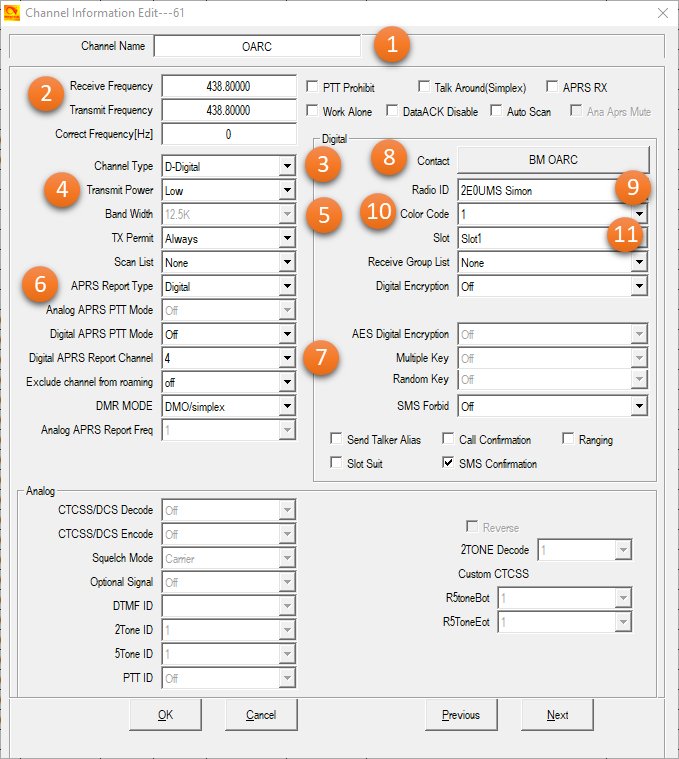
Channels are the leaf — one entry per RF channel (DMR or analog). Each channel carries:
- Channel name (16 chars)
- Channel type (Analog / DMR)
- RX freq, TX freq (separate — for a repeater, TX = RX + offset)
- TX power (Turbo / High / Mid / Low — roughly 7W / 5W / 2.5W / 1W on VHF, 6W / 4W / 2W / 1W on UHF)
- Bandwidth (12.5 kHz / 25 kHz)
- For analog: CTCSS/DCS encode + decode tone, squelch type
- For DMR: colour code, slot, contact (the talkgroup), RX group list, scan list, optional encryption key, optional APRS report config, optional roaming zone reference
Talkgroups (Contacts) are the DMR addresses — a talkgroup is a triplet of (Talkgroup Number, Call Type, Slot). Examples: (91, Group Call, Slot 2) is the BrandMeister Worldwide English talkgroup on slot 2; (3162, Group Call, Slot 2) is the Michigan statewide talkgroup. Talkgroups are referenced by channels, and are also stored in the “Digital Contacts” list (separate from the radioid.net DB which is the “Digital Contact List” — confusingly named) for direct call lookup.
RX Group Lists are sets of talkgroups that a channel listens for in addition to its primary contact. If a channel has talkgroup 3162 as its primary and an RX group list containing TGs 91, 3100, and 31620, then receiving on that channel will decode any of {3162, 91, 3100, 31620} traffic on the channel’s slot. Used to subscribe to multiple talkgroups on a single repeater without separate channel entries per TG.
Zones are collections of channels (up to 250 channels per zone), and they are the user-facing organisation unit — the channel-knob selector navigates within a zone, and the zone-select button (default a long-press of the SK1 button) switches between zones. Typical zone layout: one zone per local repeater (containing all the talkgroups available on that repeater as separate channel entries), one zone per hotspot (containing all the talkgroups you care about), one zone for analog repeaters, one zone for simplex, one zone for travel.
Scan Lists are channels to scan in order when scan mode is activated. Per-list config of priority channel (always listen for activity), look-back time, dropout delay.
Roaming Zones (DMR-specific) are channels-with-same-talkgroup across multiple repeaters, for the auto-switch behaviour described in §3.
Hot Keys / One-Touch Entries are 20 programmable keypad shortcuts (e.g. # + 1 = “send my position to TG 5057”) for common operations.
The object model has many-to-many relationships everywhere: a talkgroup is referenced by many channels, a channel references one talkgroup but many RX-group-list talkgroups, a scan list references many channels, a roaming zone references many channels (which must all reference the same talkgroup), etc. Editing in the CPS without understanding the full graph is how codeplugs get corrupted.
3.1.4 The workflow
The practical authoring sequence:
-
Define DMR contacts (talkgroups) first — populate the Digital Contacts table with every talkgroup you might ever want to reference. Easier to start with the BridgeCom-provided “starter” contact list (downloadable, contains the canonical BrandMeister + TGIF talkgroups) and edit from there. The Digital Contact List (the 200k radioid.net dump) is separate and is imported once via the dedicated “Digital Contact List” CPS menu — see §5 for the source CSV.
-
Define RX group lists — group your talkgroups into RX-list sets per local repeater / hotspot pattern.
-
Define channels — one per (frequency, slot, primary talkgroup) tuple. For DMR repeaters with many talkgroups, this means many channels per repeater. Naming convention matters; the standard is
<Repeater>-<TGname>or<HS>-<TGname>(Hotspot prefix), 16-char limit so abbreviations are forced. -
Define zones — group channels by repeater/hotspot/use. The first zone in the list is the default-on-power-on zone.
-
Define scan lists — for each zone you want to scan, build a scan list referencing the channels in that zone.
-
Define roaming zones (optional) — for talkgroups that exist on multiple geographic repeaters.
-
Configure encryption keys (only if you’ve thought hard about §3 — and even then, configure but don’t enable on amateur channels).
-
Configure APRS — beacon interval, beacon path, GPS report destination talkgroup.
-
Set radio-level options — DMR ID, callsign, intro screen, boot-up pic, key-tone, backlight timeout, power-save mode, etc.
-
Write the codeplug to the radio: CPS → Program → Write to Radio. Full image including the contact DB takes ~3 minutes on a USB 2.0 host; codeplug-only (without DB) is ~20 seconds.
Worth doing on paper first: sketch the zone-to-channel-to-talkgroup mapping before opening CPS. The CPS UI is dense and not forgiving of “let me just rearrange these” experimentation — a mid-edit zone reordering can leave channel references dangling.
3.1.5 Encryption settings — no separate “AT_Options” package
Some community write-ups describe a separate BridgeCom “AT_Options” expansion package (AT_Options_v9.zip) with a per-radio activation key. No such file appears in any BridgeCom or AnyTone package or download page examined in September 2026. Every UVII package holds the CPS, the radio firmware, the APRS/Bluetooth board firmware, icon files and PDF documentation, and the change logs show AES-256 and ARC4 encryption configured in the standard CPS. The regulatory caveat in §3 applies regardless: configure keys if wanted, but leave encryption off on amateur channels.
3.1.6 Backup before edit — non-negotiable
DMR codeplugs are intricate enough that a partial write or an interrupted programming session can render the radio unbootable. The recovery procedure (BridgeCom’s “factory reset and re-program” guide) takes 30-60 minutes and assumes you have a working codeplug to write back. Always read the current codeplug out and save it to a versioned file before any write operation. The codeplug is the single most valuable artifact in the entire DMR setup — it represents hours of authoring work, and CPS does not auto-version.
See §5 for the backup discipline and folder layout.
3.2 Codeplug backups
A per-radio backup folder along these lines keeps codeplugs, firmware packages and supporting files together (a generic illustration; names are placeholders):
<radio-folder>/
├── CodePlugs/                    ← versioned .rdt codeplug snapshots
│   ├── YYYY-MM-DD_pre-edit.rdt
│   ├── YYYY-MM-DD_post-edit.rdt
│   └── README.md                 ← change-log per codeplug
├── Boot Pic/                     ← startup-screen bitmaps (160 × 110, 1-bit BMP)
├── Firmware/                     ← one subfolder per vendor package, kept as downloaded
│   └── <model> <version>/        ← firmware .zip, matching CPS .zip, manual PDFs, release notes
├── Contact_DB/                   ← dated RadioID contact exports
└── README.md ← top-level indexCadence: re-backup the codeplug on every meaningful edit, before every firmware update, and after every successful firmware update (the post-update read is the verification step that the new firmware can correctly serialise the codeplug). Filename convention: YYYY-MM-DD_short-description.rdt. The README in CodePlugs/ carries a per-file change log: what was added/removed, why, and what the test result was (e.g. “added TG 31660 Michigan Statewide on Slot 2 of WPSD hotspot; tested with hotspot at 145.575 simplex, decoded successfully”).
Firmware update procedure (per AnyTone’s “Firmware Update Instructions” PDF, included in every package). The update is done from inside the CPS — the packages contain no separate firmware-updater program.
- Read current codeplug → save as
YYYY-MM-DD_pre-fw-update.rdt(the MCU reset in step 5 erases it) - Install the CPS from the same package; in CPS, Set → Set Com selects the radio’s port. Turn GPS and APRS off in the radio
- Power off the radio; hold PTT + PF3 (the top key) while powering on → update mode (red LED blinks)
- CPS → Tool → Firmware and Icon Update → Open Update File → select the
.spifile in the package’s FW folder → Write - Reset the MCU: hold PTT + PF1 while powering on and confirm “Initialize”
- Write the saved codeplug back with the matching CPS; verify the firmware version and that the radio responds correctly on a known channel
Recovery from a failed update: no separate recovery bootloader is documented by AnyTone or BridgeCom. A “PTT + SK1 + PA” recovery mode described in some community accounts appears in no vendor document found and could not be confirmed; the documented path is to re-enter update mode (PTT + PF3) and write the firmware again.
The Custom Boot Pic is a 160 × 110 monochrome bitmap displayed at power-on. The N0SWN callsign boot pic lives in the Custom Boot Pic subdirectory as both the .bmp ready-to-flash format and the .png source. Bitmap conversion uses the community D878UV_BootPic_Converter Python script (in the same directory); no BridgeCom converter tool appears in any vendor package. See §7 for the workflow.
The Contact DB subdirectory holds dated CSV dumps from radioid.net for traceability — when the contact database lookup gives a wrong name for an ID, the diff against the most recent dump narrows down whether it’s a stale local DB (re-import the newer dump) or a radioid.net data issue.
Comments (0)