Xiegu X6100 · Volume 3
Xiegu X6100 — Vol 3: Programming
HF/6m with built-in tuner, color touchscreen, internal battery
3.1 Programming workflow
The X6100 is unusual in the lineup because most of its “programming” is on-radio configuration, not codeplug-style channel programming. There is no CHIRP / RT Systems / vendor CPS workflow that imports a CSV of 1,000 channels and dumps it back to the radio. Instead, programming the X6100 falls into three categories: firmware updates, memory channel management, and CAT setup for digital modes.
3.1.1 Firmware updates
An official X6100 firmware package is not a small .bin file. Every package is a zip holding a complete raw microSD-card system image (sdcard.img / x6100udimg*.img, roughly 857–909 MB uncompressed) plus Xiegu’s release note. The image is written to the card with an image writer — Rufus (which Xiegu repackages as the “X6100 SD Card Creation Tool”) or balenaEtcher — never copied onto a FAT32-formatted card. Each package updates two parts: the operating system and application (APP), and the baseband firmware (BASE).
Official releases (Xiegu release notes; packages distributed by Radioddity and xiegu.eu):
Table 1 — Official releases (Xiegu release notes; packages distributed by Radioddity and xiegu.eu)
| Version (APP / BASE) | Released | Xiegu’s changes |
|---|---|---|
| 1.2.0 / 1.1.9 | 2025-12-13 | Wi-Fi settings page reworked; AGC algorithm revised, with AGC SLOW / AGC FAST time constants in RADIO SETTING1; new cursor mode for tuning within the displayed spectrum. A factory reset is required after the upgrade, or bands may not switch and the frequency may display as 0 |
| 1.1.9 / 1.1.8 | 2024-09-15 | Parameter text changed from red to white; fixes the no-RF-output fault that 1.1.8 caused on some radios |
| 1.1.8 / 1.1.7 | 2024-09-04 | Baseband gain re-allocation, auto-level tracking, audio-scope switch, noise reduction, CI-V meter formats, WLAN/Bluetooth screens. Withdrawn at Xiegu’s request after transmit failures |
| 1.1.7 / 1.1.6 | 2023-07-26 (rebuilt 2023-08-31) | Adds the wfview server; the 2023-08-31 rebuild adds CI-V “echo”. xiegu.eu called it experimental and recommended 1.1.6 at the time |
| 1.1.6 | 2022-11-02 | First version that keeps user data over an update |
Earlier packages run back to 1.1.0 (2021-12-07), the first public release found; no public package predates it.
Update procedure (Xiegu’s X6100 Firmware Upgrade Tutorial and Radioddity’s instructions):
- Power: connect a stable 13.8 V external supply for the whole process — Xiegu packages since April 2022 require external power for the baseband update. Record menu settings, memories and Wi-Fi details first, and note the current APP and BASE versions.
- Prepare the card: unzip the package on a PC, then write the image file to a microSD card of at least 4 GB with Rufus (Windows) or balenaEtcher (Windows, Linux, macOS). Everything on the card is overwritten. Eject the card through the operating system before removing it.
- Update the system (APP): with the radio switched off for at least 30 seconds, insert the card (contacts towards the display, pushed in until it latches) and switch the radio on normally — no key is held. The system update runs by itself; after about 2 minutes a shutdown countdown appears and the radio switches itself off.
- Remove the card before powering on again; otherwise the update runs again.
- Update the baseband (BASE): switch on, then GEN → SYSTEM SETTING → FIRMWARE UPGRADE (shown as “FW UPGRADE” in the 2021 tutorial), select the listed baseband firmware and press UPGRADE. The title bar shows Erasing Flash, Writing Flash and Done (about 20 seconds). Press QUIT and power-cycle.
- Factory reset where the release requires it (GEN → SYSTEM SETTING → FACTORY RESET) — mandatory for 1.2.0, and advisable after any update. Xiegu states that user data is preserved over an update only from 1.1.6 onward.
- Verify: GEN → SYSTEM SETTING → SYSTEM INFO shows both the APP and BASE versions.
Xiegu and Radioddity document no downgrade procedure; mechanically an older package is applied the same way, but whether an older BASE can be written over a newer one could not be confirmed. Every official package from 1.1.0 to 1.2.0 except the withdrawn 1.1.8 is recorded, and the first, last-1.1.x and current packages are hosted, at https://radios.fubsypoly.com/downloads/#xiegu-x6100, together with the SD Card Creation Tool and the WCH CH342 USB serial driver.
Keep the previous firmware ZIPs in the firmware-history/ directory. The directory holds approximately 3.8 GB of accumulated zip archives (each package is 245–360 MB because it carries the whole card image); these are gitignored from the repo and live on the local filesystem only.
3.1.2 Community firmware
The community firmware for the X6100 is R1CBU’s alternative firmware (x6100_gui), written by Oleg Belousov, R1CBU (LGPL-2.1), and continued since 2024 by gdyuldin (GitHub gdyuldin/x6100_gui; version 0.34.2 as of August 2026). It is a complete replacement user interface on a Buildroot Linux system, distributed as its own microSD-card image. It runs from the card: the radio boots it when the card is inserted, and removing the card returns the radio to Xiegu’s firmware, so nothing in the radio’s own storage is overwritten. Some of its features (CESSB, VOX, CW peak) need gdyuldin’s patched Xiegu BASE firmware, which is a modification of vendor firmware and is not hosted by this site.
Projects named “Hello X6100” (im0o) and “Reform_xiegu_x6100” in earlier write-ups could not be found: the GitHub repository im0o/hello_x6100 returns 404 and repository searches find neither. Other, smaller community projects exist (for example WSPR tools and Armbian and Debian ports).
Risk profile for the R1CBU firmware: low. Because it runs from the card, the stock firmware is untouched; the main risk is depending on a feature that only a particular community release provides.
3.1.3 Memory channel programming
Memory channels can be set:
- On-radio — store the current VFO state to a memory slot via the menu, or edit existing memories via the touchscreen. This is fine for adding a handful of channels (favorite SSB nets, a few VHF/UHF FM repeaters on 10 m, etc.).
- Via wfView (see Vol 3) — wfView exposes a memory editor that pulls down the current memory bank, lets you edit it in a spreadsheet-style UI, and writes it back. This is the practical way to bulk-program 50+ memories.
The X6100’s memory format is internal to the radio’s NAND flash and not directly accessible as a file. The “backup” workflow is to use wfView (or any CAT-aware tool) to pull all 99 memories, save them as a CSV, and re-load if needed. See §5.
3.1.4 CAT control for digital modes
The X6100 enumerates over USB-C as a composite USB device exposing:
- Serial ports for CAT control, provided by a WCH CH342 dual serial chip (Xiegu’s 1.1.3 note names the ports “USB-Enhanced-SERIAL-A/B CH342”)
- A USB Audio Class device for TX/RX audio
On Linux: device shows up as /dev/ttyACM0 (or /dev/ttyACM1 depending on enumeration order) and hw:CARD=X6100. No drivers needed for current Linux kernels.
On Windows: the COM port appears under Device Manager; the audio device appears in Sound settings as “X6100 USB Audio.” Radioddity distributes WCH’s CH342/CH343 driver (CH343CDC 1.3) for the radio; the CH342 is a CDC-class chip, and whether Windows 10/11 need that driver or install a working one automatically could not be confirmed.
On macOS: same — appears as a CDC serial port (/dev/cu.usbmodemNNNN) and as a USB audio device.
Caution on the CAT profile. Xiegu’s 1.1.6 release note states that most of the X6100’s CI-V instructions are compatible with the Icom IC-705 — that is, the radio speaks Icom CI-V, not Yaesu CAT. The “Yaesu FT-817 at 4800 baud” settings below are carried over from earlier write-ups and could not be confirmed against any Xiegu document; where they fail, an Icom IC-705 (CI-V) rig profile is the one Xiegu’s note points to.
For WSJT-X (FT8, FT4, JS8Call, MSK144, JT65, etc.):
- Settings → Radio: Rig = “Yaesu FT-817” (works with the X6100’s CAT emulation), PTT Method = CAT, Mode = USB
- Serial port = the X6100’s CDC port (e.g.
/dev/ttyACM0,COM4), Baud Rate = 4800 (default), Data Bits = 8, Stop Bits = 1, Handshake = None - Settings → Audio: Input = X6100 USB Audio (or equivalent on your OS), Output = X6100 USB Audio
For fldigi (RTTY, PSK31, MFSK, Olivia, etc.):
- Configure → Rig Control → Hamlib: Rig = “Yaesu FT-817”, Device =
/dev/ttyACM0or COM port, Baud = 4800 - Configure → Sound Card: Sound Card = X6100 USB Audio for both capture and playback
For N1MM Logger Plus (contest logging):
- Configurer → Hardware → Radio: Type = FT-817, COM = X6100’s serial port, Baud = 4800
- N1MM does not need direct audio; SSB voice goes through the mic, CW through the key jack
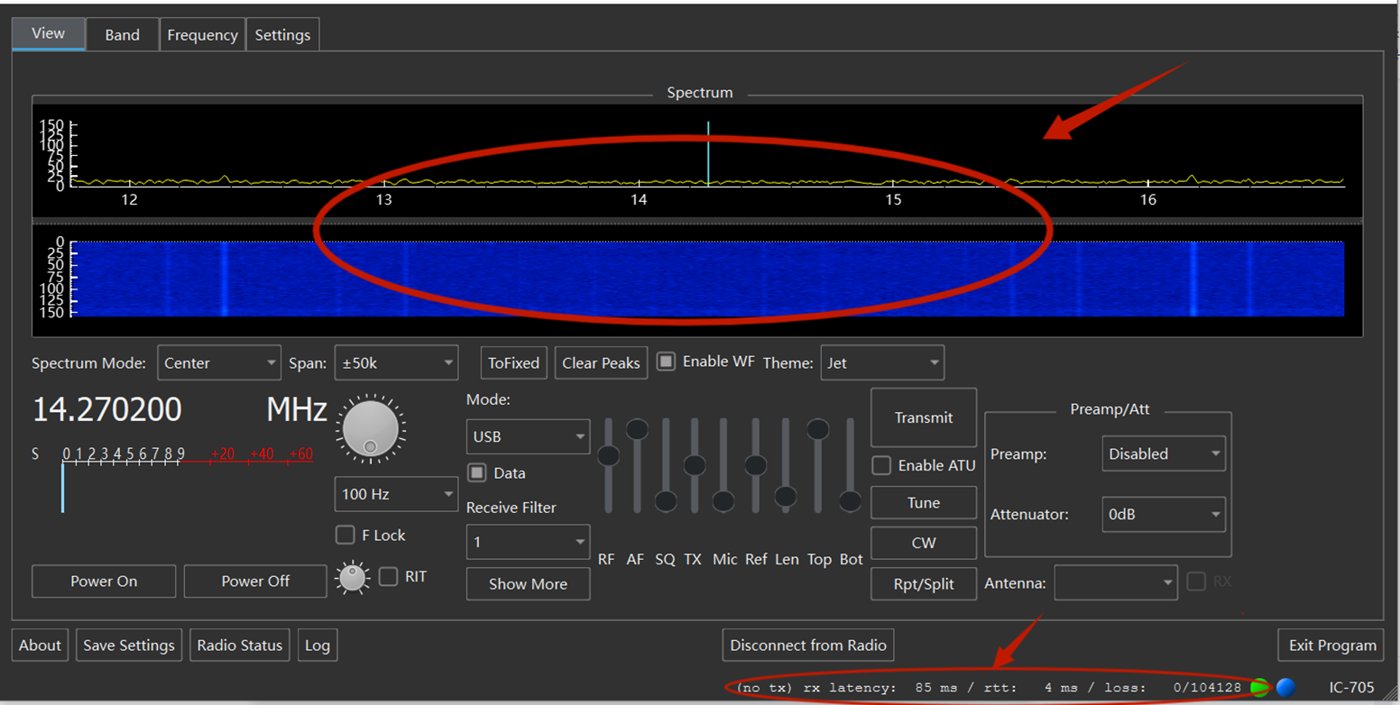
For wfView:
- Connect dialog: Radio Type = Xiegu X6100, Serial =
/dev/ttyACM0, Baud = 4800 - Once connected, wfView shows the spectrum/waterfall as a host-side display, exposes all controls in a tabbed UI, and provides memory-editor and band-plan-overlay functions
Audio level setup: on the X6100, set Menu → Audio → USB Output Level to roughly -3 dB to -6 dB below clipping (visible as the input-level meter in WSJT-X/fldigi staying in the green during a received transmission, with brief excursions into yellow). On the host OS, set the X6100 USB Audio input gain to ~50% as a starting point and adjust from there.
3.1.5 CAT command set
The X6100 implements a subset of the Yaesu CAT command set (CAT-compatible-ish; some commands return Xiegu-specific extensions). Useful commands for scripting:
Table 2 — The X6100 implements a subset of the Yaesu CAT command set (CAT-compatible-ish; some commands return Xiegu-specific extensions). Useful commands for scripting
| Command | Hex sent | Function |
|---|---|---|
| Set freq | AA BB CC DD 01 | Set VFO A to AABBCCDD (BCD packed) |
| Get freq | 00 00 00 00 03 | Read current VFO A frequency |
| TX on | 00 00 00 00 08 | Key transmitter |
| TX off | 00 00 00 00 88 | Unkey transmitter |
| Set mode | XX 00 00 00 07 | XX = 00 LSB, 01 USB, 02 CW, 03 CWR, 04 AM, 08 FM, 0A DIG, 0C PKT |
| Get rx | 00 00 00 00 E7 | Returns squelch state |
| Get tx | 00 00 00 00 F7 | Returns PTT state |
This list is partial — the full CAT manual (the Yaesu FT-817 CAT reference and the X6100 firmware release notes) is the authoritative source. Hamlib’s rigctl library handles the abstraction so you typically don’t write raw CAT bytes; for one-off scripting it works:
rigctl -m 1020 -r /dev/ttyACM0 -s 4800 f          # get freq
rigctl -m 1020 -r /dev/ttyACM0 -s 4800 F 14074000 # set to 14.074 MHz
rigctl -m 1020 -r /dev/ttyACM0 -s 4800 T 1        # PTT on
rigctl -m 1020 -r /dev/ttyACM0 -s 4800 T 0        # PTT off
(Hamlib rig ID 1020 is “Yaesu FT-817 / FT-857 / FT-897 family” — the X6100 lives here in Hamlib’s catalogue rather than as a dedicated Xiegu entry.)
3.2 Codeplug backups
The X6100 codeplug concept is different from a DMR radio. There is no monolithic “codeplug” that contains all configuration in one file; instead, there are several distinct config artifacts to back up:
3.2.1 What to back up
Table 3 — What to back up
| Artifact | What it contains | Backup method | Backup cadence |
|---|---|---|---|
| Memory channels (99 slots) | Frequency, mode, filter, CTCSS/DCS, tag | wfView CSV export | After every significant memory edit |
| Settings (filter widths, AGC, NR/NB defaults, USB audio levels) | All menu preferences | Photograph each menu page; or transcribe to a text file | Annually, or before firmware update |
| Firmware version | Just the version string | Note in a text file | At every firmware update |
| Tuner cal data (per-band best-match positions) | Persisted in the radio’s NAND, not user-readable | Not directly backupable — the tuner re-learns | n/a |
| ATU memory (best match per recently-used freq) | Internal NAND | Not directly backupable | n/a |
The X6100’s NAND flash isn’t directly readable as a filesystem from the user side. The tuner’s learned positions and the radio’s internal settings are persisted there and survive power-off, but cannot be “exported” as a file the way a DMR codeplug can. The practical implication: a factory reset wipes everything, including learned tuner positions, and recovery is by re-tuning each antenna once after the reset.
3.2.2 Backup file locations
- Firmware archive: a per-radio folder holding versioned snapshots of every firmware release used on the radio.
- Memory channel exports: periodic CSV exports from wfView. Filename convention:
x6100-memories-YYYYMMDD.csv. - Menu settings: dated markdown notes documenting current menu values.
3.2.3 Recovery procedures
Recovery from a corrupted firmware update (radio fails to boot or boots into a broken state): no Xiegu or Radioddity document describes this case. The radio starts from a microSD card when one is inserted (both the update card and the R1CBU firmware depend on this), so the first step is:
- Power off and remove the card.
- Write a fresh update card from a known-good package with Rufus or balenaEtcher (the image is written, not copied).
- With 13.8 V connected, insert the card and switch on normally; let the system update run, remove the card, then repeat the baseband update and a factory reset.
Beyond that, contact the dealer (Radioddity in the US). No user-level “USB bootloader tool” for the X6100 is publicly available.
Recovery from a memory channel wipe:
- Connect wfView, open the memory editor.
- Load the most recent CSV backup from
memory-backups/. - Click “Send to radio.” All 99 memories are written.
- Spot-check 2-3 memories on-radio to confirm.
Recovery from a settings menu wipe (after a factory reset):
- Walk through the menu manually, restoring each setting from the most recent settings-snapshot markdown.
- Re-tune each commonly-used antenna so the ATU re-learns its match positions.
- Re-set USB audio levels for any digital modes you use (this is the most-commonly-forgotten setting; if it’s wrong, WSJT-X will report “Tx audio level very low” or “very high” and the rig will appear to not be transmitting properly).
The recovery workflow is more manual than for the DMR rigs in this series because the radio’s internal state isn’t dump-and-restore-able. The compensation is that the X6100’s state surface is smaller (no 1,000 talkgroups, no 50 zones, no roaming tables, just a few menu pages and 99 memories).
Comments (0)