WPSD DIY Hotspot · Volume 3
WPSD DIY Hotspot — Vol 3: Configuration & Backups
Hand-built Pi + MMDVM duplex + Nextion display
3.1 Hotspot configuration workflow
The DIY hotspot’s configuration is end-to-end web-managed once the WPSD image is on the SD card and the Pi is on the network, exactly as the SkyBridge is. The difference is that the configuration starts earlier — you have to flash the SD card, do the initial Wi-Fi/Nextion setup, and pick the MMDVM hat type yourself, all before the first dashboard interaction. The SkyBridge ships pre-flashed; this hotspot ships as a stack of parts.
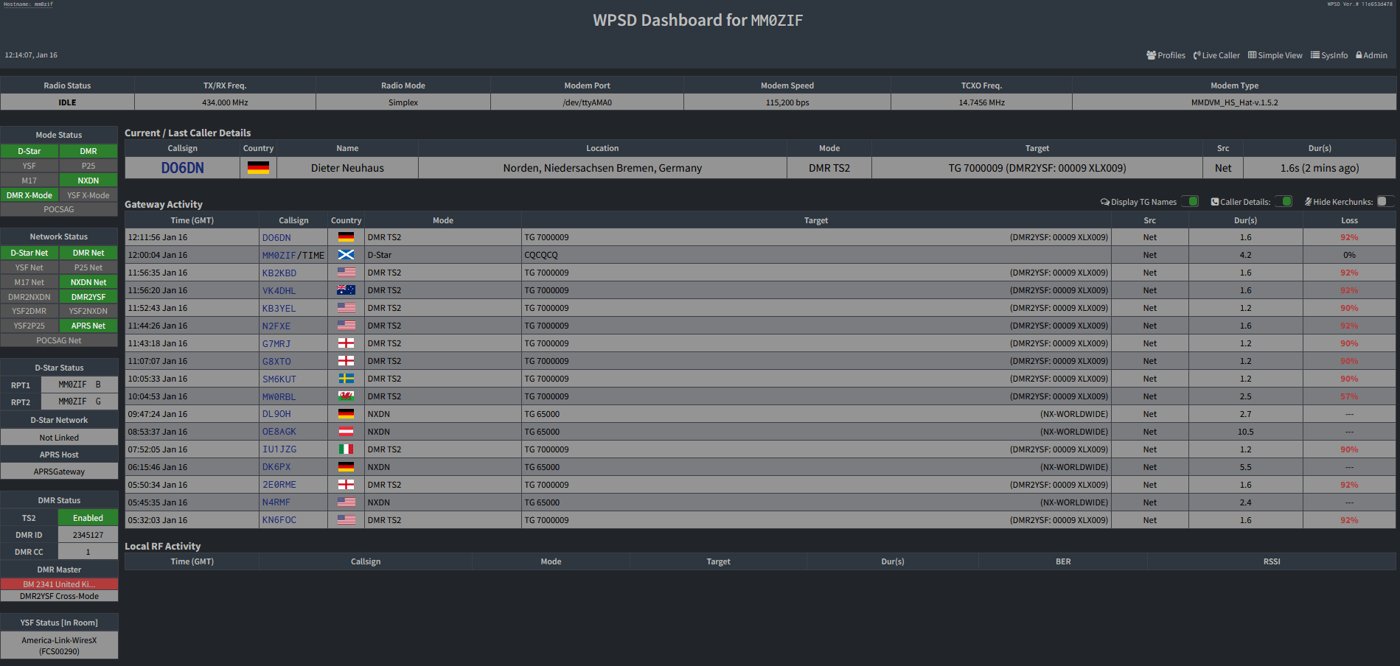
3.1.1 Step 1 — Flash WPSD to the SD card
The canonical starting point is downloading the current WPSD disk image from the WPSD page (https://w0chp.radio/wpsd/). For multi-core Raspberry Pi boards (Zero 2 W, 3, 4, 5) the universal image is WPSD_RPi-Trixie.img.xz (Raspberry Pi OS “Trixie”, Debian 13; 964 MB compressed as listed in September 2026). The file is an xz-compressed image that is written directly — balenaEtcher (which the WPSD User Manual recommends over Raspberry Pi Imager) and Raspberry Pi Imager both read the .img.xz without it being decompressed first. Use a microSD card of at least 8 GB. The image names carry no build number and are rebuilt in place, so the download is checked against the current WPSD_SHA256-SUMS.txt published alongside it. The image is a complete Debian-based Linux system with WPSD pre-installed. A Trixie image is a new operating system: moving to it from Bookworm means writing a new card, not an in-place upgrade (Bookworm installations remain supported until Bookworm’s end of life). The current image is listed at https://radios.fubsypoly.com/downloads/#wpsd-hotspot.
For comparison: the SkyBridge ships with this step already done at the factory, and you’d only redo it on RMA-replacement or if the SD card fails (Vol 21 §5 ↗). On the DIY hotspot, this is the first task at first-build and the recovery task whenever an upstream WPSD upgrade goes sideways or the SD card fails. The Samsung PRO Endurance / SanDisk High Endurance microSD recommendation from §2 (Hardware tour) is load-bearing here; a consumer microSD eventually corrupts under WPSD’s logging workload, and the recovery is “re-flash and re-upload the most recent WPSD_Config_*.zip backup.”
3.1.2 Step 2 — First boot and Wi-Fi onboarding
The WPSD page describes two ways onto the network. If the Pi has Ethernet (the Pi 4B / 3B+ both do; the Zero 2 W doesn’t), plug in an Ethernet cable. For Wi-Fi, create a Wi-Fi file with the WPSD WiFi Config File Generator (https://w0chp.radio/wifi-config-generator/) and copy it onto the card’s boot drive before first boot; the WPSD User Manual (https://manual.wpsd.radio/install_software/) alternatively enters the SSID, password and Wi-Fi country in Raspberry Pi Imager’s OS Customisation screen (Shift+Ctrl+X). A captive-portal “WPSD-Setup” access point is not what the WPSD page describes and could not be confirmed. On first boot, allow about five minutes (longer on slower boards) before the dashboard becomes reachable at http://wpsd.local.
Keep a copy of the hotspot’s Wi-Fi credentials off the card: either a standard wpa_supplicant.conf with a network={…} block naming the SSID and passphrase, or the same credentials as a NetworkManager .nmconnection profile, the format current Raspberry Pi OS releases use. Either can rebuild the Wi-Fi connection from scratch after a reimage. Neither file should ever be published or shared, because an SSID can be looked up in public Wi-Fi location databases.
3.1.3 Step 3 — WPSD dashboard onboarding
Once the Pi is on the network, point a browser at http://wpsd.local or the assigned IP — the WPSD dashboard appears. Default login is pi-star / raspberry (inherited from mainline Pi-Star); the WPSD page says to change that password on the Configuration page. The dashboard’s Configuration page is the same as the SkyBridge’s, with the same fields:
- Callsign — the operator’s amateur callsign (N0SWN, the same as in the AnyTone D878’s codeplug per Vol 8 §6 ↗ and the SkyBridge per Vol 21 §4 ↗).
- DMR ID — the 6- or 7-digit RadioID.net-issued DMR ID; same as in the D878 codeplug.
- Hostname — a custom
-duplexhostname (WPSD names its backup file after the hostname). The earlier hostname waspi-star-duplex(per the April 2022 Pi-Star configuration export); renamed at some point during the Pi-Star → WPSD migration. - Frequency (TX and RX) — separate values for the duplex setup. The standard amateur 70 cm repeater offset is 5 MHz, so for example TX at 442.700 MHz and RX at 447.700 MHz; verify against the local repeater coordinator’s published low-power simplex/hotspot allocation before committing.
- Colour code — CC 1 by community convention; this matches the AnyTone D878 default and the SkyBridge’s CC.
- Modem type — pick the duplex modem variant matching the installed hat. The board here is an MMDVM_HS_Dual_Hat design (silkscreen
MMDVM_HS_DualRev v1.3), so the entry is the MMDVM_HS_Dual_Hat on GPIO (exact wording varies by WPSD version). Pick wrong and the hat may not initialize or may run at the wrong frequencies. - TX power / TX Level — the MMDVM hat’s “TX Level” parameter (0-255 numeric). 60-80 corresponds to roughly 10-20 mW EIRP — same low-power-is-good-on-a-hotspot argument as the SkyBridge (Vol 21 §4 ↗). Resist the temptation to crank this up; the antenna proximity argument from Vol 21 §6 ↗ applies equally.
- Network selection — pick BrandMeister, TGIF, W0CHP, and/or the FCS/XLX reflector ecosystem; per-network API keys go in the corresponding sub-panels. For the partitioning in this setup (SkyBridge on BrandMeister, DIY on TGIF and/or cross-mode and/or DMR slot 2), the DIY hotspot’s network configuration mirrors the partition.
- Static and dynamic talkgroups — per-slot in the duplex configuration, which is the other major difference from the SkyBridge’s simplex setup. Slot 1 typically gets the always-on talkgroups for the slot-1-active networks; slot 2 gets the static set for the slot-2-active networks. See Vol 2 §6 (Talkgroup hygiene) ↗ for the deep discussion.
The dashboard’s Save button writes everything under /etc/pi-star/, restarts MMDVMHost, DMRGateway, and the per-mode gateway daemons, and shows the new state in the live panels within ~10 seconds. No reboot needed except for network-mode toggles.
3.1.4 Step 4 — Nextion display configuration
This is the step where the DIY hotspot differs most from the SkyBridge Plus — BridgeCom’s factory configuration also drives the SkyBridge’s 2.4” screen as a Nextion display, but with BridgeCom’s settings rather than a layout chosen by the builder. Two pieces of configuration are required.
MMDVMHost.ini Display setting. The Pi’s MMDVM configuration (under /etc/mmdvmhost/MMDVMHost.ini or the equivalent path in the current WPSD layout — the dashboard’s Configuration > Display panel exposes this) must specify Display=Nextion plus the serial port (Port=/dev/ttyAMA0 or /dev/serial0) and the baud rate (Baud=9600 for the WA6HXG v2.x layouts; Baud=115200 for the v3.x layouts that use the ON7LDS Nextion Driver). The WPSD dashboard sets these automatically when “Nextion” is selected as the display type and the right layout family is picked from the dropdown.
Nextion layout upload. The actual graphical layout the Nextion shows is a .tft file that has to be flashed to the Nextion’s own microSD slot (not the Pi’s), or alternatively uploaded over UART using the Nextion Editor running on a Windows PC. The microSD-slot method is the standard:
- Pick the matching HMI layout from the
TFT Files/{24,32,35}/folders of WA6HXG’s MMDVM-Nextion-Screen-Layouts repository. For a 3.5” duplex Nextion the file isBlue1_Duplex_35in_LHnLHT_2.0.tft(or the Green1 variant); for a 3.2” duplex the file isBlue1_Duplex_32in_LHnLHT_GB_2.1.tft(the 2.1 version added the dual-last-heard feature and requires the “G4KLX Layout” setting in WPSD per the WA6HXG README, not the default Nextion layout — easy gotcha). - Copy the .tft to a FAT32-formatted microSD card (single .tft file in the root of the card; the Nextion’s bootloader looks for it).
- Power off the Nextion, insert the SD card, power on. The Nextion’s bootloader detects the SD, begins flashing the new layout, displays a progress bar, finishes in 30-60 seconds.
- Power off, remove SD, power on. The new layout is live.
The alternative upload path is the Nextion Editor (Windows-only; the long-term-support “vLTS” release was the one current at the time of the build). The Editor lets you edit the HMI source file directly (graphical layout, text-box positioning, font choices, button actions) and upload over UART when the Nextion is connected to the PC via a USB-to-serial adapter. This is the path for customising the layout — changing background colours, repositioning fields, adding pages — rather than just installing a stock one. The Editor manual (EDITOR NEXTION.pdf) and a tutorial (NEXTION_Tutorial_v2.03.pdf) ship in the Info Sheets folder of WA6HXG’s layout repository.
For ongoing operation, the Nextion just works — once the layout is loaded and the MMDVMHost is sending it data, the display updates in real time without further intervention. The maintenance task is updating the layout when the WA6HXG repo releases a new version (a few times a year), which is the same procedure as step 1-4 above with the newer .tft file.
3.1.5 Step 5 — WPSD updates
WPSD pushes updates frequently — the W0CHP project is actively maintained, with nightly builds and periodic stable releases. The dashboard’s Configuration > Update panel checks the upstream WPSD update server and applies updates in-place; configuration is preserved across updates. Cadence: the recommendation is to check the dashboard’s Update panel at least monthly, apply stable releases when they appear, and skip nightlies unless chasing a specific feature.
The contrast with the SkyBridge (Vol 21 §7 ↗) is one of support model rather than of update server: a separate BridgeCom update stream could not be confirmed, and BridgeCom’s own reimaging path for the SkyBridge now uses a WPSD image. The DIY hotspot is on upstream timing; if an upstream regression lands before the maintainers catch it, the DIY hotspot sees it. The mitigation is to back up the configuration before applying updates — see §5 (Network config backups) — so the rollback path is clean.
3.1.6 Step 6 — SSH and command-line access
Unlike the SkyBridge’s “officially unsupported” SSH posture (Vol 21 §4 ↗), SSH on the DIY WPSD hotspot is expected. The default user (pi-star, password raspberry, change on first login) has full sudo access; the filesystem layout follows the upstream Pi-Star convention with /etc/pi-star/ for daemon configuration and /var/log/pi-star/ for logs. Common SSH tasks:
- Tailing
MMDVMHost.logfor debugging — the real-time per-transmission log that shows every keyup, talkgroup, and BER value the modem decodes. - Editing
MMDVMHost.iniorDMRGateway.inidirectly when the dashboard’s UI exposes only part of the configuration — for example, fine-tuning RxLevel and TxLevel separately, adding custom DMRGateway rewrite rules, or experimenting with non-standard modem parameters. - Running
pistar-watchdogand similar Pi-Star utility scripts that the WPSD dashboard wraps but doesn’t expose for direct invocation. - Backing up the configuration tree via
tarorrsyncfor off-Pi storage, as a belt-and-suspenders complement to the dashboard’s Backup/Restore ZIP export.
The SSH access is a core differentiator vs the SkyBridge for the experimentation use case. Most operators most of the time don’t need it; specifically, it’s the reason the DIY hotspot is the “test new things” platform.
3.2 Network config backups
A complete hotspot backup is a small set of files kept off the SD card:
- The dashboard export — WPSD’s Configuration > Backup/Restore > Download produces a ZIP of the whole
/etc/pi-star/tree (MMDVMHost, DMRGateway and the other gateway INIs, the dashboard settings). It is the file a restore uploads. - The Wi-Fi credentials — a
wpa_supplicant.confor a NetworkManager.nmconnectionprofile (see Step 2), for rebuilding the connection when the export cannot be restored. - A configuration record — callsign, DMR ID, frequencies, colour code and slot, static talkgroups and network logins, kept as a spreadsheet or text file. It is the cross-check the dashboard does not provide.
- The display files — the Nextion
.tftin use and the HMI source it came from, if the screen layout was customised. - Build photos — the MMDVM board’s silkscreen, the display ribbon routing and the assembled stack, as the reference for any rebuild.
An older Pi-Star export restores into WPSD as well: WPSD migrates in place from a recent Pi-Star image and keeps the configuration, so a history of Pi-Star_Config_* exports followed by WPSD_Config_* exports is normal for a hotspot that predates WPSD.
3.2.1 Backup cadence
The recommended cadence for the DIY hotspot is:
- Before every WPSD update. Always. The update is in-place and usually preserves config, but if it doesn’t (the rare case where a major schema change happens), having the immediately-pre-update ZIP is the rollback path.
- After every meaningful configuration change. A new talkgroup added to the static set, a network added or removed, a frequency changed, an API key rotated, a Nextion layout swapped. Anything that would be painful to reconstruct from memory if the SD card failed tomorrow.
- Quarterly. A defensive belt-and-suspenders backup that catches any incremental drift that the “after every change” rule missed.
- After any major build change. New MMDVM hat, replacement Pi, enclosure swap — anything that touches hardware that the configuration depends on.
Each backup is the WPSD dashboard’s Configuration > Backup/Restore > Download a ZIP. Keeping WPSD’s own file name (WPSD_Config_<hostname>_YYYY-MMM-DD.zip) keeps the exports in date order.
3.2.2 Restore workflow
The recovery path if the SD card fails or the WPSD installation corrupts:
- Flash a fresh WPSD image to a replacement microSD card per §4 step 1.
- First-power-up onboarding — Ethernet, or a Wi-Fi file from the WPSD WiFi Config File Generator on the boot drive; wait about five minutes, then open
http://wpsd.local. - Log into the dashboard, change the default password.
- Configuration > Backup/Restore > Upload
WPSD_Config_<hostname>_<latest-date>.zip→ click Restore. WPSD unpacks the saved config tree, writes back the daemon configurations, the modem parameters, the network credentials, the talkgroup subscriptions, and restarts the daemons. - Reconfigure the Nextion if the SD-card replacement also wiped the Nextion’s flash — flash the
.tftfrom the Nextion HMI archive per §4 step 4. - Verify the dashboard shows the expected callsign, DMR ID, frequencies, talkgroups, network connections; key the D878 on the configured frequency and confirm the hotspot’s TX LED and the dashboard’s Last Heard show the transmission.
End-to-end recovery: 30-60 minutes given a fresh SD card, the most recent WPSD_Config ZIP, and the Nextion .tft. Without the backup, the recovery is from-scratch (re-entering all the configuration items by hand) which is longer and risks missing edge-case settings. The W0CHP - DMR config and notes.xlsx spreadsheet is the cross-check that’s not in the ZIP — it carries the talkgroup map, the frequency plan, and the cross-reference notes that the dashboard doesn’t surface.
3.2.3 What to NOT publish
Three kinds of file in a hotspot backup should never be published, committed to a public repository or posted in a support thread:
- Wi-Fi credential files (
wpa_supplicant.conf,.nmconnection) — they carry the network passphrase in clear text, and the SSID alone can be looked up in public Wi-Fi location databases. - Dashboard exports — they can contain BrandMeister and TGIF API keys. Rotating a key on the network’s website is quick if an export leaks.
- Configuration records that hold serial numbers, logins or API keys.
Comments (0)